

Description
Download Replay Media Catcher – Efficient Screen Capture and Media Downloader
Overview
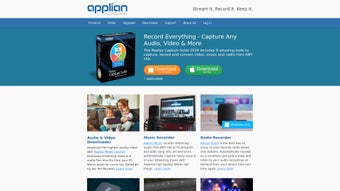
Replay Media Catcher is a versatile utility built specifically for macOS users who want a single, reliable solution for both downloading online media and capturing screen activity. The software streamlines the often‑tedious process of locating and saving songs, movies, podcasts, or any other audiovisual content from the web. By entering a URL or using the built‑in search function, users can instantly retrieve direct download links for a wide range of file types. Whether you’re looking to build a personal music library, archive a favorite documentary, or keep a podcast episode for offline listening, Replay Media Catcher offers a straightforward, click‑and‑save workflow.
Beyond its downloading capabilities, the application includes a powerful screen recording module that works without watermarks, time limits, or hidden fees. When you launch the program, it automatically scans open windows and prompts you to start recording with a single keystroke. The captured videos are saved directly into the main Replay Media Catcher folder, making organization simple and intuitive.
The software is offered as a free 14‑day trial, allowing users to explore the full feature set before committing to a subscription. While the trial grants unrestricted access to most functions, downloading content from paid streaming platforms still requires a valid subscription to those services. Overall, Replay Media Catcher positions itself as an all‑in‑one tool for Mac enthusiasts who need a secure, fast, and user‑friendly way to capture and store media for offline consumption.
Core Features & Screen Recording
Feature List
- Universal media downloader – supports video, audio, and podcast formats.
- Integrated link scanner that extracts direct download URLs from popular websites.
- Selective download options – choose audio‑only, video‑only, or both.
- 14‑day free trial with full feature access.
- High‑resolution screen recorder with no watermarks or time limits.
- Automatic window detection for instant recording start.
- Batch download support for multiple files at once.
- Built‑in media player for quick preview before saving.
- Customizable output folder and file naming conventions.
- Regular updates that keep pace with changes on streaming platforms.
The standout component of Replay Media Catcher is its ability to blend two distinct workflows—online media downloading and screen capture—into a single, cohesive interface. Users no longer need to juggle separate applications for each task, which reduces the learning curve and eliminates compatibility headaches. The downloader works by parsing the HTML of the target page, identifying embedded media streams, and presenting the user with a clean list of downloadable links. From there, you can filter by type, preview the content, and start the download with a single click.
The screen recorder, on the other hand, excels in scenarios where a direct download is not possible, such as live webinars, subscription‑only streams, or software tutorials. Upon launching the app, Replay Media Catcher lists all active windows, allowing you to pick the exact area you wish to capture. The recording engine uses macOS’s native AVFoundation framework, ensuring smooth 60 fps capture and lossless audio synchronization. All recordings are saved in the default folder, but you can change this location in the settings if you prefer a different directory structure.
Security and privacy have also been given priority. The software never stores your credentials for third‑party services and does not embed any hidden trackers in the files it creates. This makes Replay Media Catcher a trustworthy option for users who are cautious about data leakage while handling copyrighted material. The combination of robust features, a clean UI, and a zero‑watermark recording engine makes the tool especially attractive for content creators, educators, and everyday media enthusiasts alike.
Installation, Usage & Compatibility
Installation Steps
Getting Replay Media Catcher up and running on your Mac is a straightforward process that takes just a few minutes. Follow these steps for a smooth installation:
- Visit the official Replay Media Catcher website and click the “Download for macOS” button.
- The installer package (ReplayMediaCatcher.dmg) will be saved to your Downloads folder.
- Double‑click the .dmg file to mount the disk image, then drag the Replay Media Catcher icon into your Applications folder.
- Open the Applications folder and launch Replay Media Catcher. macOS may prompt you to confirm that you trust the developer; click “Open” to proceed.
- When the app starts for the first time, you’ll be greeted with a brief tutorial that explains the main interface, the download manager, and the screen recorder.
- Enter your email address to activate the 14‑day trial. No credit card is required, and you can cancel anytime before the trial ends.
How to Use the Downloader
After installation, using the downloader is as simple as copying a URL. Paste the link into the search bar at the top of the window, and the application will automatically scan the page for media resources. A list of available files will appear, each with details such as format, size, and duration. Choose the desired items, select the output folder, and click “Download.” The progress bar provides real‑time feedback, and you can pause or cancel any download at any point.
The batch download feature allows you to queue multiple URLs, making it perfect for archiving playlists or series of podcasts. You can also set download speed limits if you need to preserve bandwidth for other tasks.
Screen Recording Workflow
To start a screen capture, click the “Record Screen” button on the main toolbar. Replay Media Catcher will display thumbnails of all open windows. Select the window you wish to record, choose whether to capture the full screen or a custom region, and press “Start Recording.” The recorder runs in the background, and you can stop it at any time by clicking the floating stop button or using the designated keyboard shortcut (default: ⌃⌥⌘R). Recorded files are automatically saved in the designated media folder, ready for immediate playback or further editing.
System Compatibility
Replay Media Catcher is built for macOS 10.14 (Mojave) and later. The application runs natively on Intel‑based Macs as well as Apple Silicon (M1, M2) devices, thanks to Apple’s Rosetta 2 translation layer when needed. Minimum hardware requirements include 2 GB RAM, 200 MB of free disk space for the application itself, and an additional 500 MB for temporary cache during downloads and recordings. No additional codecs or plugins are required; the software ships with everything it needs to handle the most common audio and video formats.
Pros, Cons & Frequently Asked Questions
Pros and Cons
- Pros:
- All‑in‑one solution for downloading and screen recording.
- Free 14‑day trial with full feature access.
- No watermarks or time limits on recordings.
- Supports both Intel and Apple Silicon Macs.
- Batch download capability saves time on large playlists.
- Regular updates keep up with streaming‑site changes.
- Cons:
- Requires a separate subscription to download from paid streaming services.
- Limited to macOS – no Windows or Linux version available.
- Advanced editing features are not included; external editors are needed.
FAQ – Your Questions Answered
Can I use Replay Media Catcher to download videos from YouTube?
Yes, the downloader can extract video and audio streams from YouTube URLs. However, you must respect YouTube’s terms of service and only download content that you have the right to use.
Is the screen recorder truly unlimited?
Absolutely. Replay Media Catcher’s screen recorder imposes no time limits, watermarks, or hidden fees. Recordings are saved in the original quality of your display.
Do I need to be online to watch previously recorded videos?
No. Once a video or audio file is downloaded or recorded, it is stored locally on your Mac and can be played offline at any time.
What file formats does Replay Media Catcher support?
The application supports MP4, MOV, MP3, AAC, and M4A out of the box. Additional formats can be added via optional codec packs, but most users find the default set sufficient.
Can I cancel my subscription before the trial ends?
Yes. The trial is completely free, and you won’t be charged unless you actively choose to upgrade to a paid plan. You can cancel at any time from the account settings page.
Review Summary
Rating: 4.5 out of 5 stars
Pros: Integrated downloader & recorder, no watermarks, macOS‑native performance.
Cons: No Windows version, paid‑streaming downloads need separate subscription.
Conclusion & Call to Action
Replay Media Catcher delivers a compelling blend of features that address two common pain points for Mac users: capturing online media and recording on‑screen content. Its intuitive interface, powerful batch downloader, and unlimited screen recorder make it a standout choice for anyone who regularly consumes or creates audiovisual material. While the lack of a Windows version and the need for separate streaming subscriptions are minor drawbacks, the overall value—especially during the 14‑day free trial—far outweighs these limitations.
If you’re looking for a secure, fast, and hassle‑free way to build a personal media library or produce tutorial videos without watermarks, Replay Media Catcher is worth a try. Download the installer today, explore the full feature set during the trial period, and decide whether the convenience of an all‑in‑one solution fits your workflow. For macOS power users who demand both flexibility and reliability, this tool is a solid addition to your software arsenal.
Click here to download Replay Media Catcher now and start your free trial!
Guides & Tutorials for Replay Media Catcher
How to install Replay Media Catcher
- Click the Preview / Download button above.
- Once redirected, accept the terms and click Install.
- Wait for the Replay Media Catcher download to finish on your device.
How to use Replay Media Catcher
This software is primarily used for its core features described above. Open the app after installation to explore its capabilities.
User Reviews for Replay Media Catcher 0
No reviews found





.webp)